aimeGeo · Help center
Connect and manage multiple accounts
Use Easy WebBridge to connect the correct signed-in browser environment and verify account identity.
Updated
Prepare the browser
- Keep the aimeGeo client running with the same account as the web workspace.
- Install and enable Easy WebBridge using its current public installation instructions.
- Sign in to the destination platform in the intended environment and check that the extension is connected.
- Check the workspace connection status.
Add and synchronize
- Open account authorization and choose Add.
- Search for the platform and enter a recognizable account label.
- Choose account synchronization, read available environments and select the correct one.
- Verify nickname, username, platform ID and avatar against the platform page.
- Bind different accounts to their intended environments and check identity again before publishing.
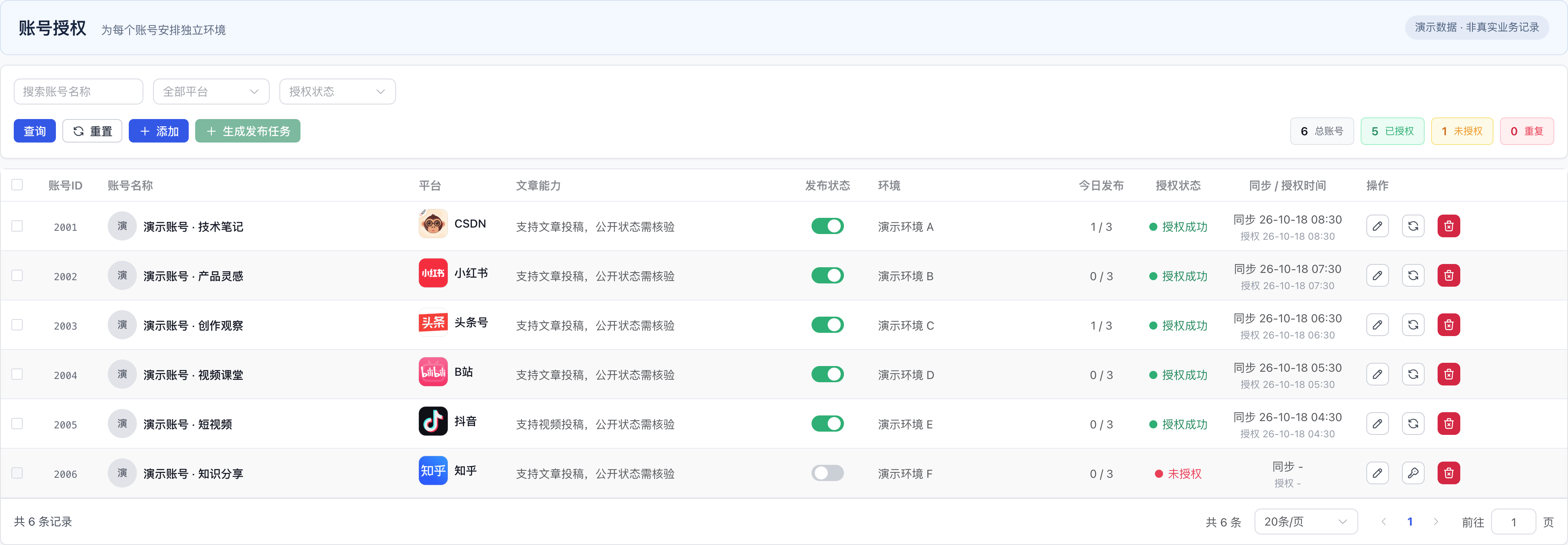
No real accounts or environment identifiers are shown. See EasyBR for isolated environments. A previous authorization result does not guarantee a current platform login.
Connection prompt
Help me check aimeGeo connections for [platform].
I have completed [client login, extension connection and platform login].
Explain the next interface checks and identity verification.
Do not request passwords, cookies, tokens or verification codes.